If you notice that a MBWay or Visa & Mastercard payment has been completed but does not appear in your Payment Account, it may be pending capture.
The capture can be performed up to 7 days after the payment.
There are two possible stages in a transaction:
- Authorization – the amount is authorized and reserved on the customer’s side (it is temporarily blocked on the customer’s account).
- Purchase – the amount is released from the hold and is then charged and debited from the customer’s account.
To manually capture a payment, you must access the menu corresponding to the payment type used (Single or Frequent):
Single
-
Access the easypay Backoffice.
-
Menu Single > List
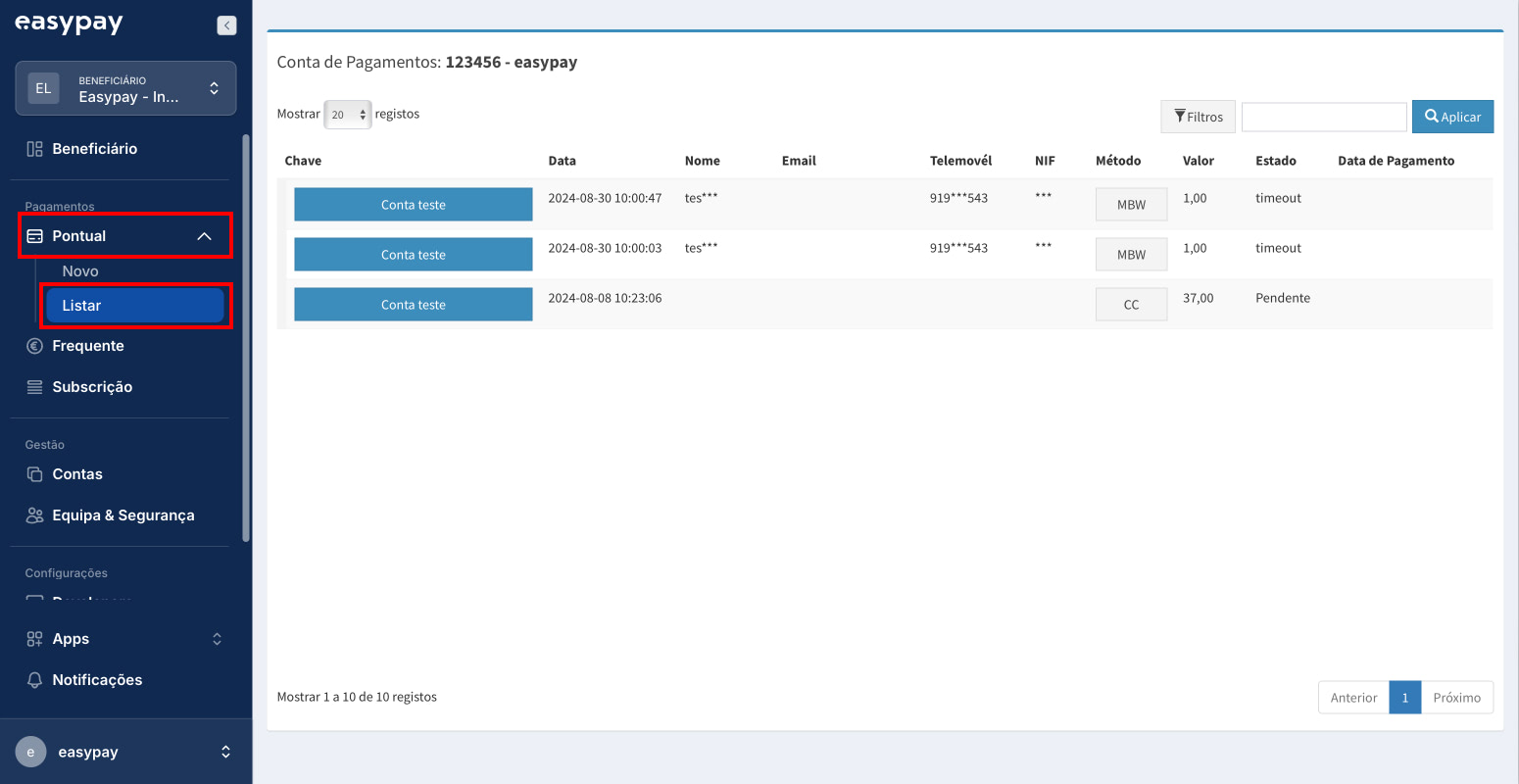
- Identify the payment marked as “Authorized”, shown in yellow on the left side.
- Click on the transaction ID.

-
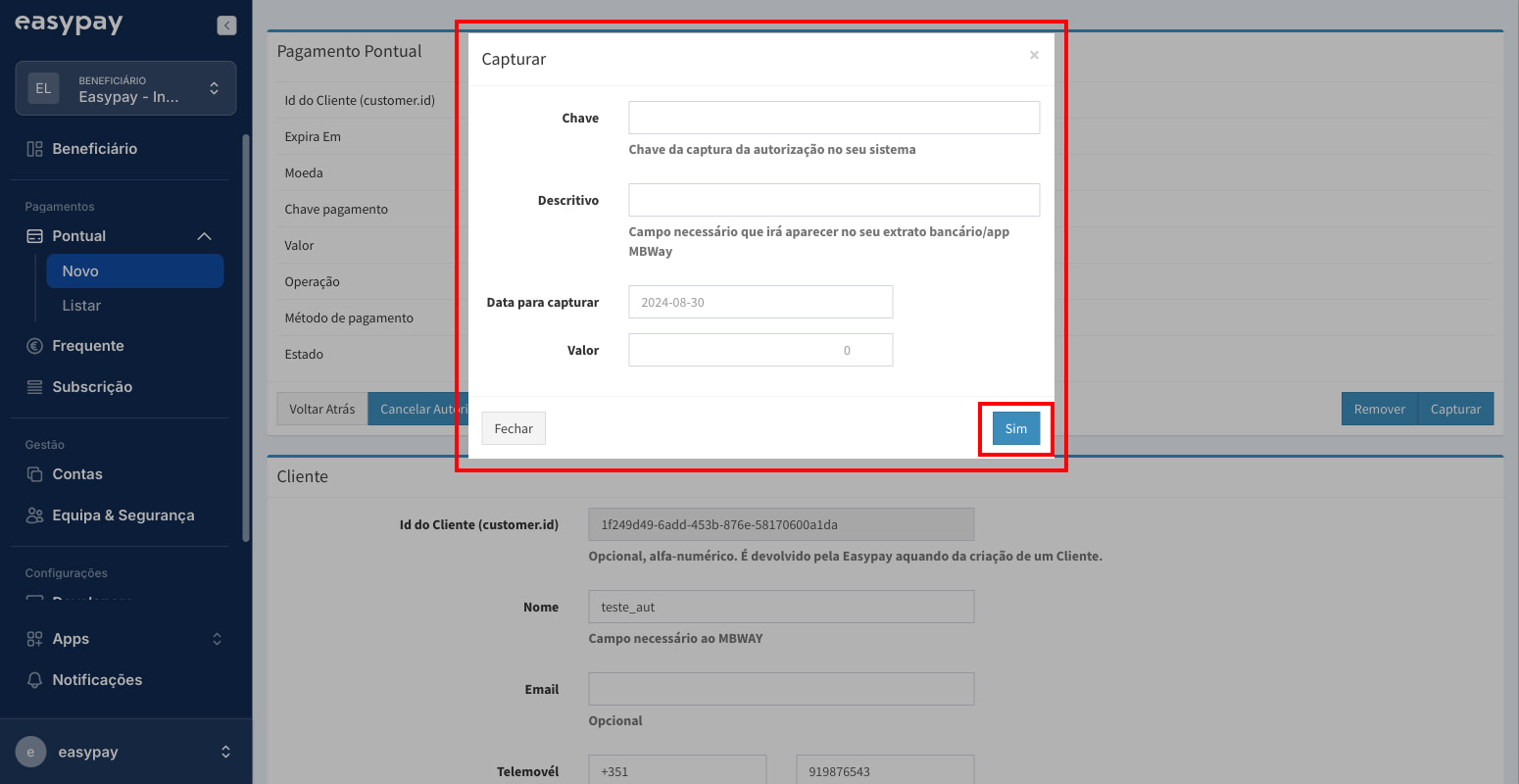
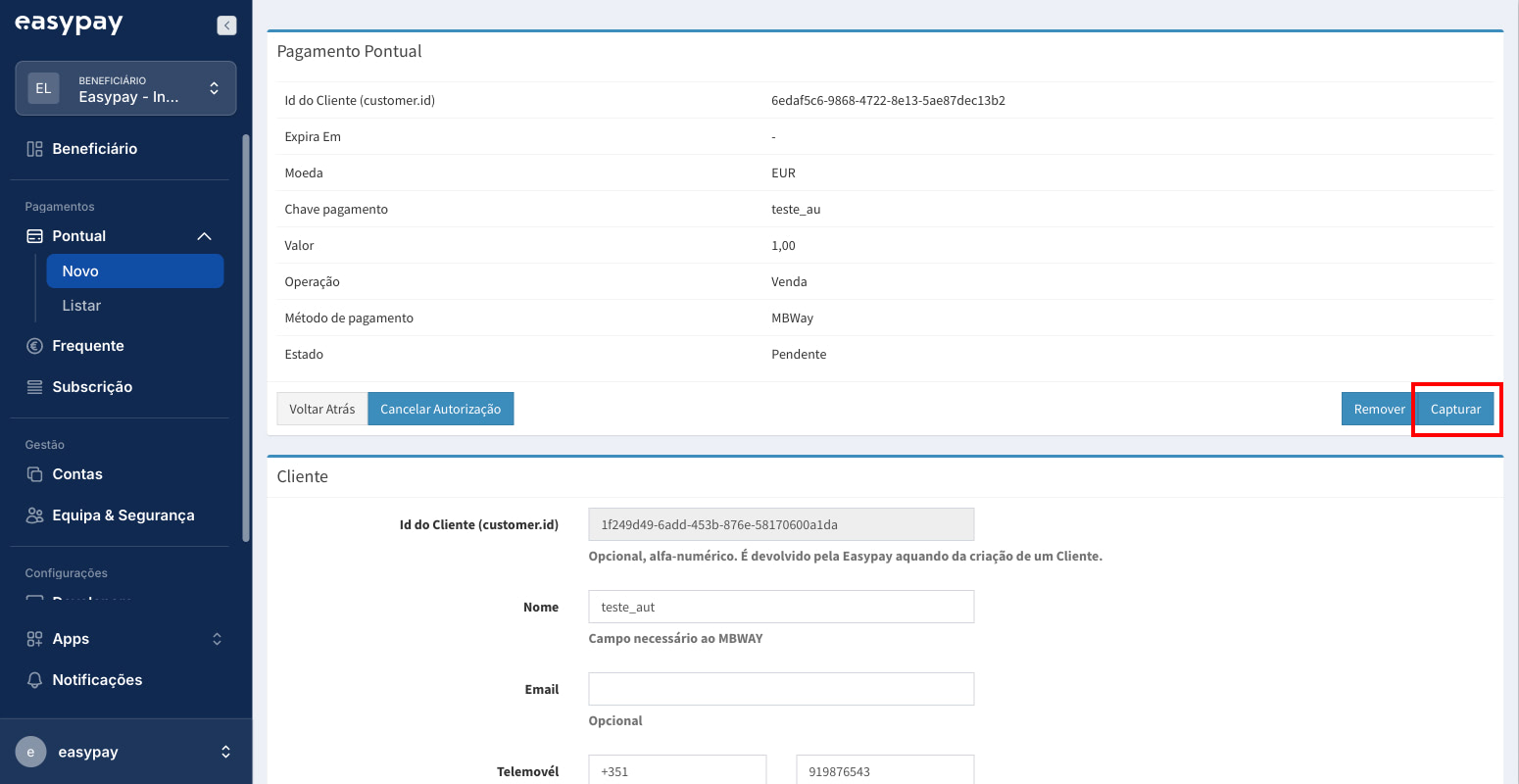
When the page opens, click the “Capture” button and then fill in the required fields:
- Key – Define how you want to identify the capture.
- Description – Set a description for the capture.
- Capture date – Set the date for the capture.
- Amount – Set the amount you want to capture.
-
Click the “Yes” button to complete.