
The easypay Backoffice was designed to allow you to search/filter any information in any menu and export it.
Searches are performed using keywords across all fields you want included in the search.
You can also search by date ranges (by default, the previous month) and by Payment Accounts.
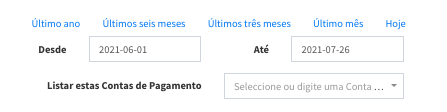
For example: if you search for the word “Maria” in the ‘email’ and ‘notes’ fields, the result will return all records that contain the name Maria in the email field OR in the notes field.
The “Filters” option is available in all menus.

In the displayed list, you will find all records with system-defined preset filters.
-
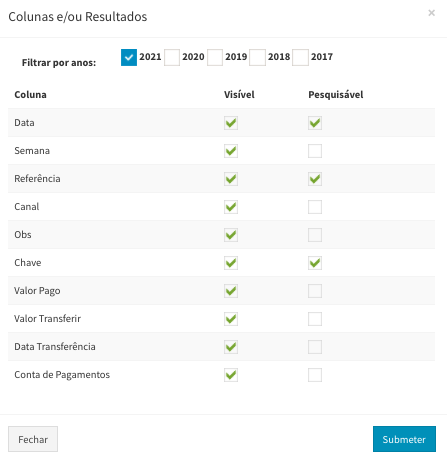
Click on ‘Filters’. This form varies depending on each Menu:
-
Select the years you want to view (by default, only the current year is selected).
-
Select the fields you want visible in your list and the fields you want to search in.
-
Click “Submit”.
-
Back on the main screen, click “Apply”.
-
You will then see the records for the selected years, based on your search.
-
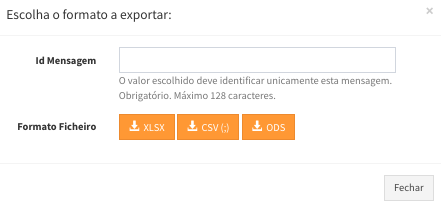
To export all records from your selection or search, click “Export Results”, where the following form will appear:
-
Message ID (ID mensagem) – Use this field to write the name of the file you are creating. easypay recommends not using Portuguese characters, special characters, or spaces in this field. For example: this-file-has-balances-2021.
-
After clicking ‘close’, wait a moment until you are notified that the file is available in the Menu.
-
