
Account security is a priority for easypay. To ensure even safer access to the backoffice and our applications, we recommend migrating from SMS authentication to an Authenticator App. In addition to improving data protection, this change offers greater convenience and reliability.
Go to your profile in the easypay backoffice and migrate from SMS to an authentication app.
Advantages of using an authenticator app
-
Greater security: SMS codes can be vulnerable to attacks such as phishing and SIM swapping (when an attacker clones your phone number). Authenticator apps generate dynamic codes that do not depend on the mobile network, making the process more secure.
-
Faster and more convenient access: with an authenticator app, you don’t need to wait for an SMS. Codes are always available in the app, even without network coverage or when abroad.
-
Fewer delivery failures: SMS may fail due to lack of signal, carrier issues, or roaming restrictions. With an authenticator app, you always have access to your codes regardless of location.
-
Compatibility with multiple platforms: you can choose from several free and easy-to-use apps, such as:
-
- Google Authenticator (Android & iOS)
- Microsoft Authenticator (Android & iOS)
- Apple Passwords & Keys (iOS & macOS)
- Authy (Android, iOS & desktop, with device sync)
How to migrate to an authenticator app
- Log in to the easypay backoffice at https://backoffice.easypay.pt/ using your registered email and password.
- You will receive an SMS with a strong authentication code, but you can change the second factor authentication method to an app.
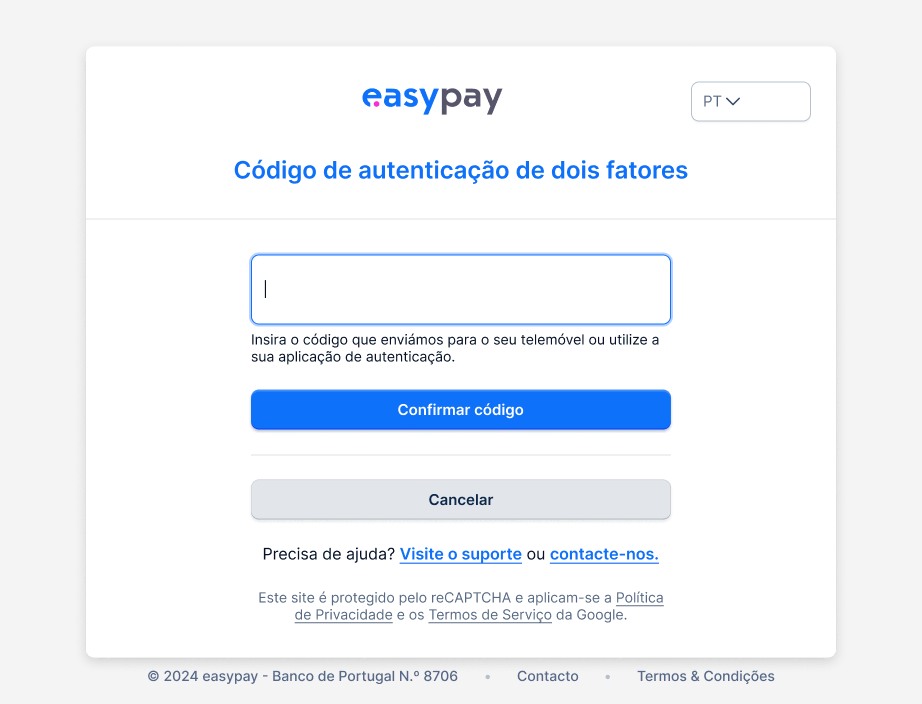

How to select App as the strong authentication factor
- Access the easypay Backoffice
- Click your username in the bottom-left corner
- Go to “My Profile”
- Under Two-step authentication, select “App”
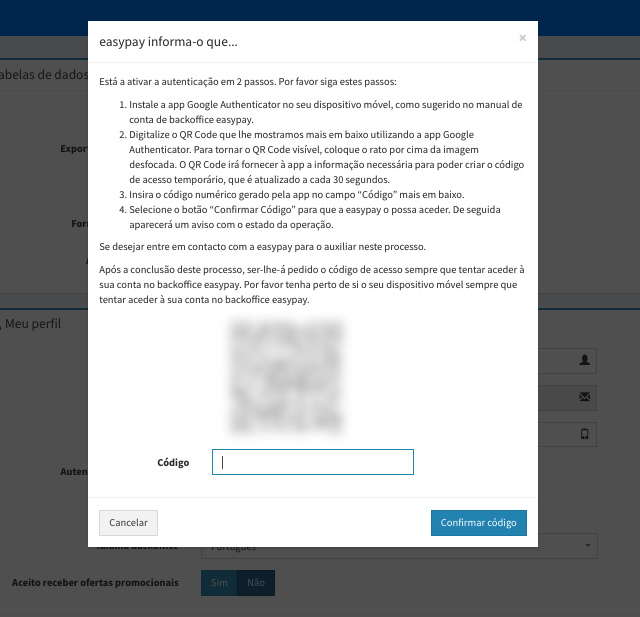
- Follow the instructions to download an authenticator app (e.g. Google Authenticator or Authy from the Apple Store / Google Play)
- Scan the QR code shown (it will appear when you hover over the blurred image). The QR code will provide the necessary information to the app to generate a temporary access code, which refreshes every 30 seconds.
-
Enter the numeric code generated by the app in the “Code” field below.
-
Select the “Confirm Code” button so that easypay can validate it. A notification will then appear showing the status of the operation.