
Subscription
You can create and manage your customers subscriptions through the easypay Backoffice, provided that the Direct Debit payment method has been contractually enabled.
Subscriptions, unlike frequent payments, have a fixed frequency and fixed amount.
To create subscription payments via the Backoffice, follow these steps:
After accessing the easypay backoffice, click on Subscription and follow the instructions below:
1. Click on New Subscription:
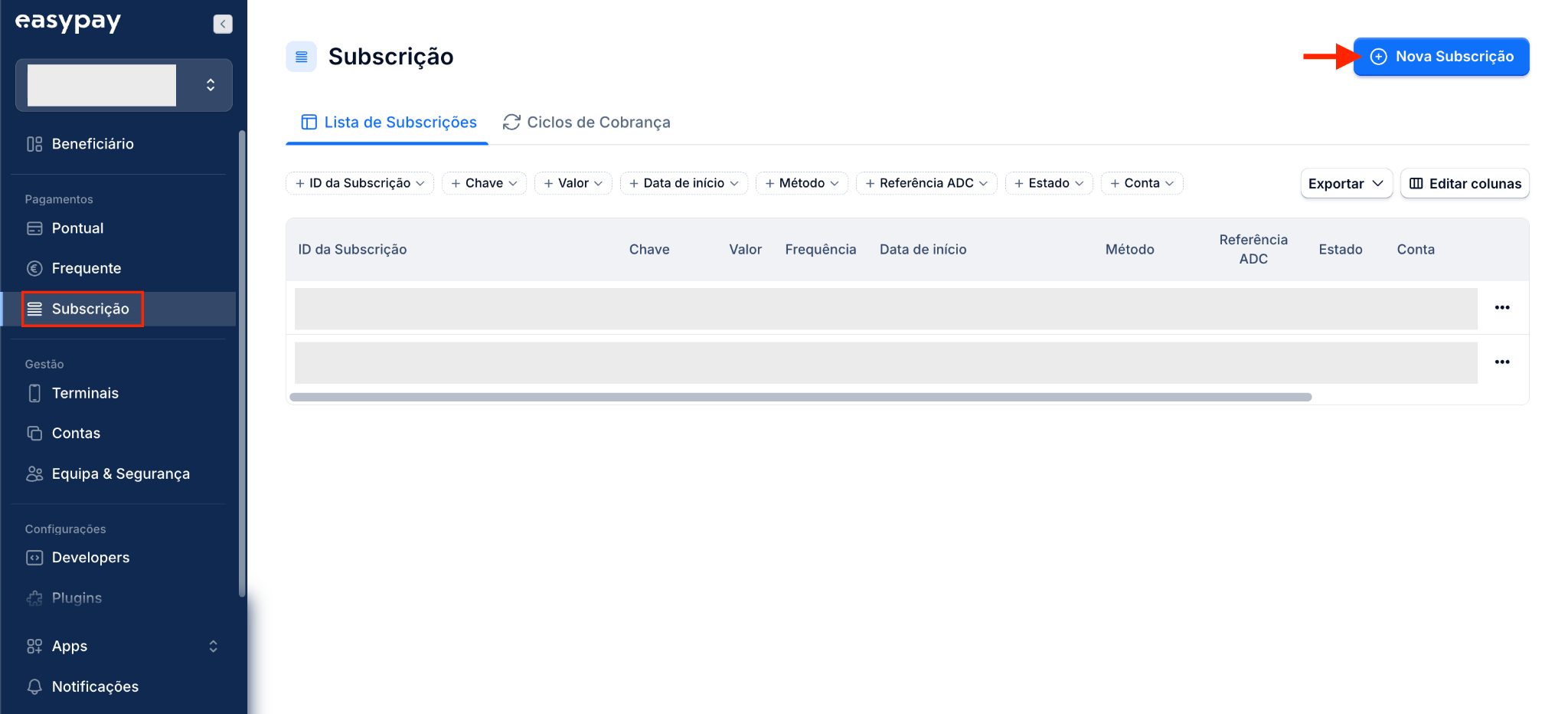
Fields marked with * are mandatory.
- *Payment account: Account where the paid amount will be credited.
- *Frequency: Frequency with which charges will be made.
- *Charge Start Date/Time: Start date and time for the charge.
- *Subscription duration: Unlimited / With expiration date / Expiration after a number of captures.
- Frequent Payment ID: You should only add the identifier of an existing frequent payment. If you do not have frequent payments, leave this field blank.
- *Payment method: Visa/Mastercard Card or Direct Debit.
- *Immediate capture: Yes/No — if you choose “Yes”, an immediate charge will be sent to the customer (right after creating the subscription); therefore, in addition to the Subscription charges, there will be an extra charge on the creation date.
- *Amount: Value of the subscription charges.
- Payment key: Information that will appear on your statement of account. This field is not mandatory, but its use is recommended (you can add, for example, the customer, invoice, or order number, etc.).
- *IBAN: IBAN where charges will be sent (only SEPA Area IBANs are allowed).
- *Account holder name: Name of the account holder.
- *Name/Email/Phone: Details of the person signing the mandate.
- Key: Information to be used in payment identification (you can use the same Payment Key mentioned above).
- Capture key: Information to be used in payment identification (you can use the same Payment Key mentioned above).
- Credit another account: Select “Yes” if you want the amount credited to another easypay payment account and enter its UUID (available in the Beneficiary menu).
- *Attempts after failure: You can select up to 2 retry attempts if the original charge is not successful.
- Description: You can add a description for the payment retry attempt.
- Name/Email/Phone/Language/Tax ID/Key: Details of the customer to be charged.
Frequent
You can create and manage your customers frequent payments through the easypay Backoffice.
Unlike subscriptions, these payments allow the customer, when making a new purchase, not to re-enter their payment details.
-
easypay Backoffice
-
Menu Frequent > New
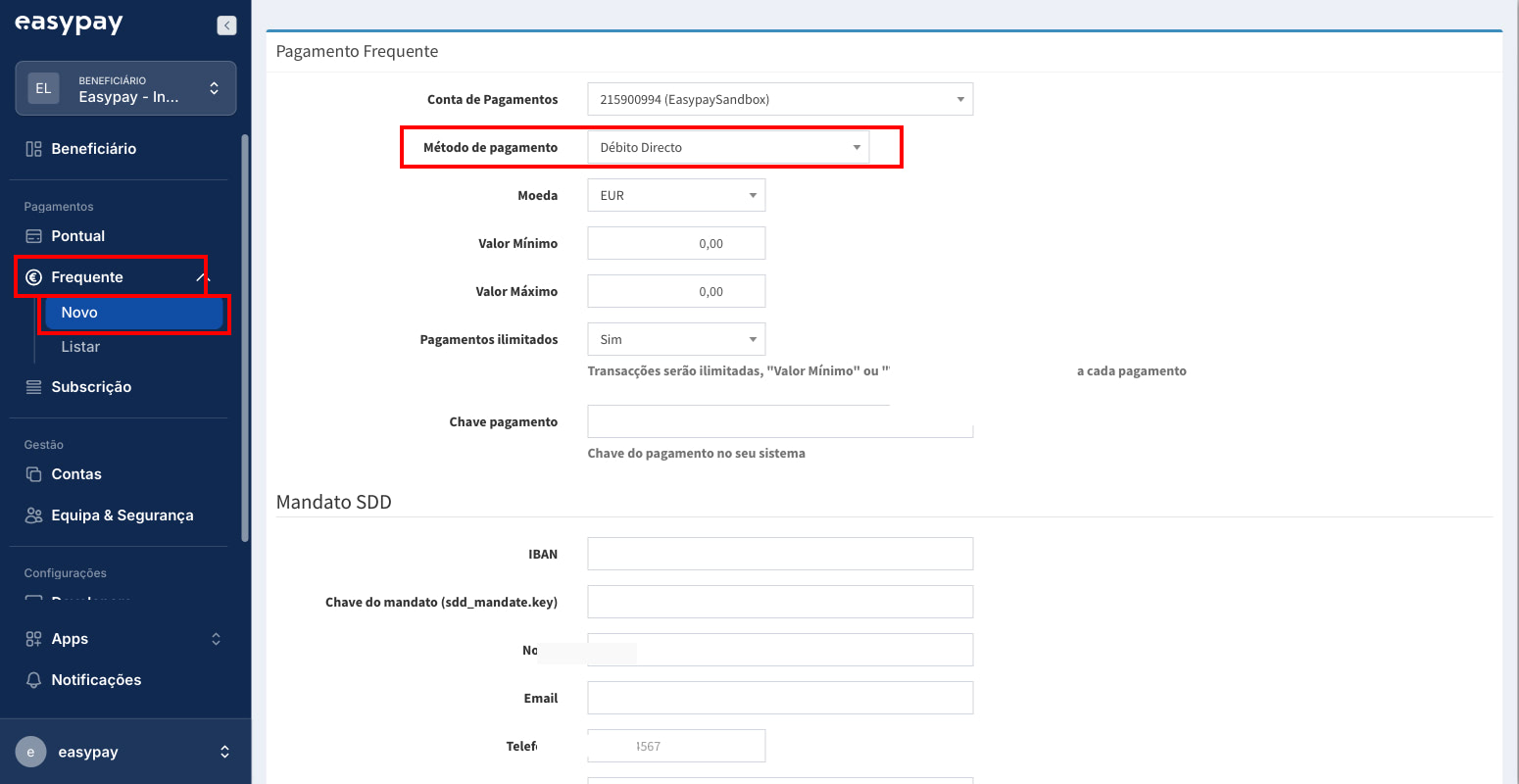
- Define the required parameters:
- Payment
- Payment Account – the easypay account you will use for collections
- Payment Method – Visa & Mastercard, Direct Debit, and Multibanco
- Minimum and Maximum Amount – set the minimum and maximum amount allowed for charges
- Unlimited Payments – set to “yes” for unlimited number of payments, or “no”
- Payment Key – internal identifier for the payment, such as member number, student name, invoice, or VAT number
- SSD Mandate (visible only if Direct Debit is selected)
- IBAN, Name, Email, Phone, Account Holder – mandatory
- These are the details of the bank account holder from which the debit will be executed
- Maximum number of debits: if you selected "no" for 'unlimited payments', you must enter '0' in this field.
- Customer
- Name, Email and Phone – mandatory fields
- VAT number (NIF) – optional
- Payment